The Open Source nature of Android makes is more open to development and gaining access to the root level of system files and this quality makes this OS far better than all other platforms. In fact, rooting an Android device unlocks its true potential. While any Android user with the smack of geekish instinct cannot even imagine living without root access on his/her device, there is still a larger class of users who just shudder at the thought of it. Thus, there is a mixed perception of rooting Android devices. For a detailed discussion on the advantages and disadvantages of rooting read our article.
The openness of Android has given rise to a huge community that works day and night to take advantage of the flexibility and access level this OS offers. As soon as a new smartphone hits the scene, and sometime even before the official launch, our developers throw themselves to the job of overcoming new challenges by forwarding a root method for the same. And when it comes to rooting a Samsung Galaxy device, we all look to the renowned developer Chainfire.
Also See:
How to Root AT&T/Sprint/T-Mobile Galaxy S4
How to Root Samsung Galaxy S4 GT-I9500
At a time when the Galaxy S4 has not even been released globally and people are still waiting to get it, Chainfire devised a way to root the LTE variant of the phone with model number GT-I9505. In most cases, we see a root method for the international version of a Samsung device first but this time it’s the LTE version. One of the reasons why we do not have working root access on the regular GT-I9500 is the new chipset it houses. It is said that the new Exynos processor will pose a greater challenge than the Qualcomm chips used in GT-I9505 when it comes to rooting.
Anyways, if you have the Galaxy S4 LTE, you can root your device by installing Chainfire’s CF-Root package via Odin.
Update:
The root method described below also works with Android 4.3 and the recently leaked Android 4.4 KitKat test firmware for Galaxy S4 GT-I9505
Prerequisites:
Before you can install CWM on Samsung Galaxy S4 and root it, you need to do the following things.
- Charge your S4 to at least 60% of battery level.
- Download and install Samsung USB Drivers on your PC.
- Download Odin3 and unzip it on your desktop (use it for installing CWM): Odin3_v3.04.zip
- Download Odin3 1.85 and use it for installing the CF-Root: Odin3_v1.85.zip
- Download CF-Auto-Root Package and unzip it: CF-Auto-Root-jflte-jfltexx-gti9505.zip
-
- Download CWM-based Recovery for GT-I9505: i9505-cwm-recovery-6.0.3.2(0611).tar
- If you prefer to install TWRP Recovery to CWM, download the latest Odin tar file: openrecovery-twrp-jfltexx.tarDownload one of the following custom recoveries as per your preference:
- Download CWM-based Recovery for GT-I9505: i9505-cwm-recovery-6.0.3.2(0611).tar
- If you prefer to install TWRP Recovery to CWM, download the latest Odin tar file: openrecovery-twrp-jfltexx.tar
- Open phone Settings> About> Build Number and tap it 7 times to activate Developer Options. Returning back to the main Settings menu, go to Developer Options and enable USB Debugging.
Rooting Galaxy S4 LTE GT-I9505:
Now here are the easy steps to install the root package to your Galaxy S4-
- Turn off your device and boot it into Download/Odin mode: hold down Volume Down + Home + Power keys together for 3-4 seconds and press Volume Up when prompted on the warning screen.
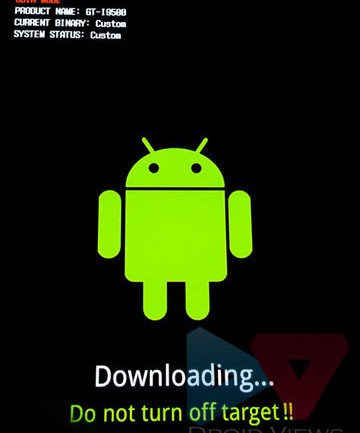
- Now launch Odin3 1.85 and connect the device to computer using USB cable. Wait till Odin detects the device and you see “Added!!” at the message box on Odin.
- Do not mess with any other option on Odin and directly click the PDA button. Select the CF-Auto-Root-gti9505.tar.md5 file.
- Finally click the Start button.
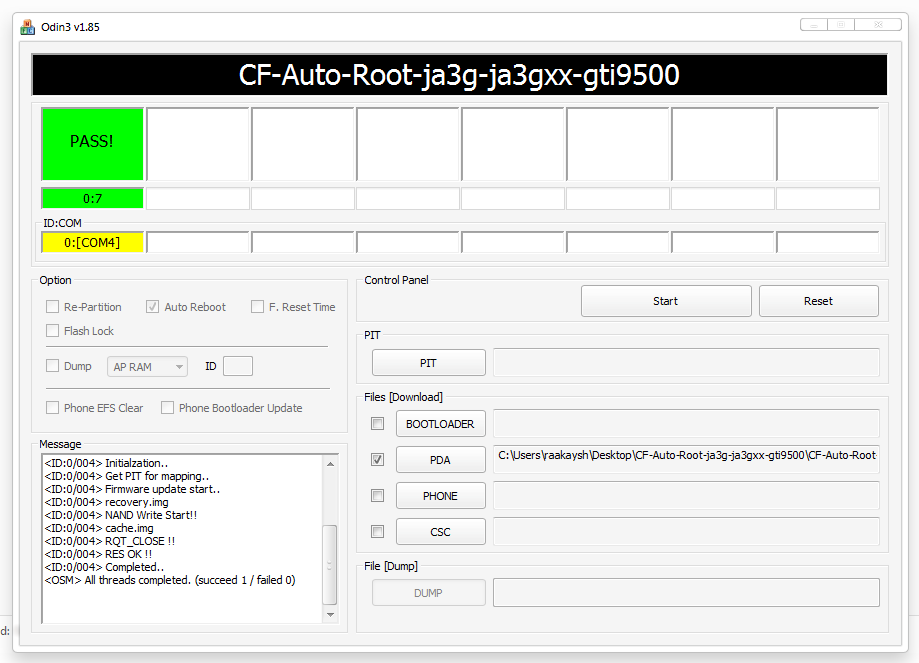
- The installation will begin and when it finishes, you’ll see a green signal with PASS! message followed by the device reboot.
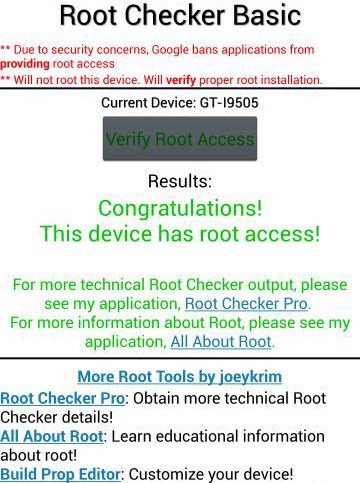
Now you will see “Android is upgrading…” message on the screen and after a few moments your Galaxy S4 will boot up properly. Your device is rooted now.
Installing CWM on Samsung Galaxy S4 GT-I9505:
Now that your Galaxy S4 has been rooted, you can also install ClockWorMod Recovery on it. Since it is .tar file, it’ll also be installed using the same procedure you did while rooting the device above. Here are the quick steps to install the custom recovery:
- Turn off the device and boot it into Download mode.
- Launch Odin3 3.04 and connect the device to PC.
- Click on PDA and select “i9505-cwm-recovery-6.0.3.2(0611).tar” or “openrecovery-twrp-jfltexx.tar” file.
- Do not mess up with anything else on Odin and hit the Start button.
- Finally, you will get PASS! message and your device will reboot automatically.
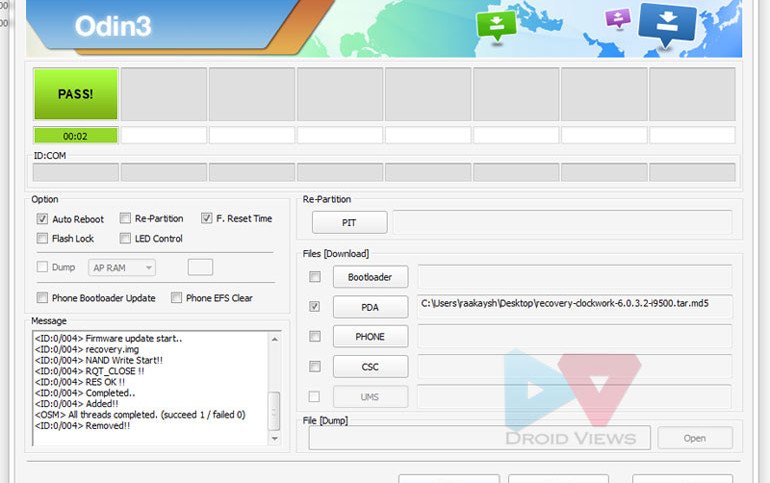
Done! Your Galaxy S4 LTE GT-I9505 now has root and CWM on it. Enjoy the privilege of owning a rooted Galaxy S4 LTE GT-I9505. In case you see any problem with the SuperSU app later on, just download the following zip file, copy it to your phone and flash it using the install option in CWM or TWRP.
Download Recovery Flashable SuperSU: UPDATE-SuperSU-v1.34.zip
Cheers!



hi rakesh.
will this root the official release of 4.4.2
Yes.
Yes. CF-Root should work fine. I have tested on GT-I9500.
hi rakesh. I have gone through this process and when I check it with root checker. it keeps saying (please wait for root checker to complete. system appears to be running slow.)
I have tried this a few times but it just waits a while and nothing happens. I have also tried the root a few times. but get the same msg. any ideas ?
Reboot the device and try some other root app to check if that’s able to get root permission.
hi rakesh, thanks for replying. I found out that I need to disable my firewall (read it in another forum,)
(I also noticed I had write protection enable and eMMC burst mode, on my phone when connected to Odin.). it said to remove cache in recovery mode and disable my antivirus and firewall when running the root through Odin. I did this and all worked fine.
cheers Craig.
Glad to know you finally made it out. Enjoy root!
thisisarne Yes, the CF-Autoroot method works on Android 4.3 too.
Can I do this while my FW is 4.3 JB?
visit techglen website too 😀
step 1 in the CWM installation guide is “Turn off the device and boot it into recovery mode”
shouldn’t it be “boot it into download mode” instead ??
You are right, a mistake on my part. Updated the article. Thanks!
Rooted and insalled CWM touch succesfully on i9505 🙂 Good guide !
Thanks and welcome! 🙂
Rooted and install CWM successfully on my Galaxy S4 , thanks Rakesh .
Nice to know that, Zoran. Changing phones frequently!
we are provide Telecommunication notes and study material is a collection of telecommunication GSM,3G,4G,UMTS,HSDPA and LTE tutorials and other report significant for telecom professionals. that provide to help in telecommunication filed.
Doesn´t work for German Firmware… as mentioned at xda
It is only for the mentioned firmware version. It’s so early but a perfectly working root will soon be available for all.
hi rakesh i rooted a gt i9505 then flashed cm 11 rom and wifi is on conecting but i cant go on internet didint lose efs and imei but not work tried modem fix i9505xxubmf8 but nothing pls help me ty for great work u do
Did you backup EFS before installing the ROM?
Please try again