Smartphones are no more just little gadget to communicate with others remotely, they become an essential part of our lives. The function as a personal digital assistant, an ultimate entertainer, a means of sharing and staying connected to the rest of the world. Their influence on our lives has become so deep that they have now begun interfering with our relationship with those who are near and dear to us.
The multimedia features of a smartphone make it a companion that always keeps us engaged. Sony’s Xperia range of devices have always been known for their rich multimedia experience and the OEM’s latest flagship Xperia Z houses the best of multimedia features from the manufacturer. The picture gallery and music player apps found in this device is really a treat to eyes and ears.
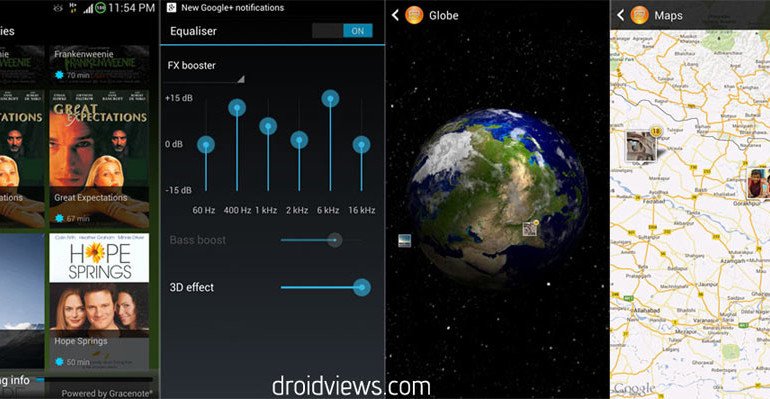
Consider it a little gift for choosing Android that you are able to enjoy such things on a non-Xperia device! We have already shared these goodies from the Xperia Z for most Android phones running ICS and Jelly Bean 4.1, and now it’s your turn Galaxy S4 users. I have been using the Sony Albums, Movies and Walkman apps on my S4 for more than a day and it works like a charm. Here are a few screenshots were taken on my Galaxy S4:
Also Install:
Android 4.2 Photosphere Camera on Samsung Galaxy S4
Requirements:
- A Samsung Galaxy S4 with root and a custom recovery (CWM or TWRP) installed.
- Sony Xperia Z Albums, Movies and Walkman apps in flashable Zips:
How to Install Sony Xperia Z Apps
- Download both the zip files from above and copy them to the internal or external SD card of your Galaxy S4.
- Turn off your device and reboot it into recovery by pressing the Volume Up, Home and Power keys simultaneously till the Samsung Galaxy S4 logo blinks for 2 times. Now release the Power button and keep other 2 keys pressed till you see the CWM/TWRP main menu.
- Use the volume up/down keys to scroll and Power key to select an option.
- Now go to “backup and restore” option and backup your current ROM preferably to external SD card. This is a very important step so do not ignore this.
- Go back to the main menu and select “advanced> wipe dalvik cache”.
- Return to the main menu, and select “install zip from sdcard> choose zip from sdcard”, select one of the files you copied to the device in Step 1. When it is installed, also install the remaining Zip.
- When both files are flashed wipe the dalvik cache again and return to the main menu.
- Select “reboot system now”.
Your device will boot now and you will see “Android is upgrading…” message at the screen. Wait till you see the phone’s screen. Open the app drawer and you would find 3 new apps there, namely Albums, Movies, and Walkman. Enjoy!
If you are stuck at any step or have any question or problem regarding the topic, feel free to drop a comment!


i have installed it but when i try to open it shows unfortunately stopped
I tried it and it works 100% on my ROOTED S4 19500. THNX)))
stucks on starting apps…plzz help…….GT-I9500 stock
Pull out battery, place it back, boot in recovery, wipe cache partition and dalvik cache and then reboot again.
ok i dont like it at all, you cant make your own albums or folders…
i just realized i cannot delete or uninstall walkman music player, im using es file explorer and root browser, none of them can uninstall or delete the apk from the system file, plz help?
Using Root Browser, it should not be problem. I have tested it many times.
on the sony xperia album, there is no way to make folders in there? all my pictures are stuck on 1 gallery, is there a way to make folders?
how do you delet the movies and album off the phone?
Open System/app and delete from there, or restore the backed up ROM.
Not working. Phone takes forever to boot up. Say’s “installing apps” and stays on that screen.
What roms and or kernels work for the s4? I’m using Infamous s4 2.2
Edit: I only tried to flash the walkman file. Maybe flashing both will work. I’ll report back.
Okay. If you have GT-I9500, it will work for sure- stock or a custom ROM. iI am not sure about other models.
I have u.s. version m919. That’s probably why
Yes, that might be a reason. Were you able to fix the bootloop?
Nope
I just want use the clear bass feature and Sony’s unique equalizer.
which apps in the Walkman system app folder can I pull and install separate to achieve that?
None of the files will work in isolation. I will update the post as soon as I get a working solution for US variants of the S4.