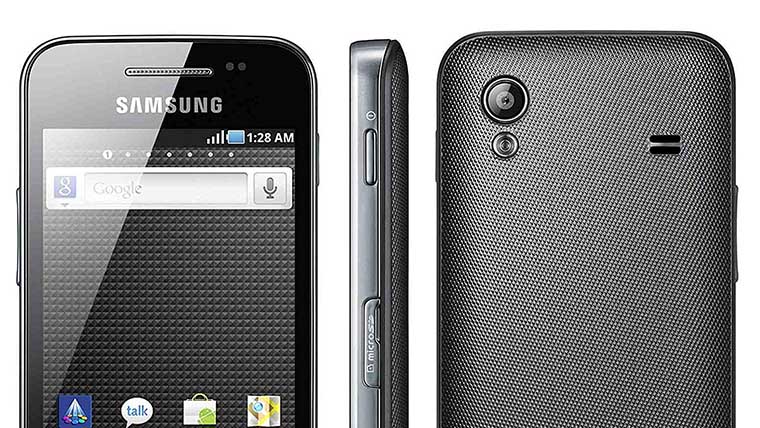
It has been a long time since Samsung Galaxy Ace S5830i launched and in due course of time, it has become a popular name among the mid-range Android devices. The Galaxy Ace S5830i features a 320 x 480 pixels display with multi-touch, 2 GB internal memory, 278 MB RAM, 800 MHz ARM 11 CPU, Wi-Fi, and Samsung’s TouchWiz interface on the top. Just a few months ago it received an update to Android 2.3.6. But if you want to expand the capabilities of this little giant by installing apps that need root access to the system files, or wish to empower it further by flashing a custom ROM, you will have to root Galaxy Ace S5830i first.
Since there is not an exhaustive tutorial on how to root the Galaxy Ace S5830i, I planned to write one. So, here we go. But before you proceed, let me warn you that rooting your device void’s the warranty provided by its manufacturer, but you can reclaim the warranty by unrooting the device later.
Moreover, if the procedure is not followed to the letter, it might even brick your lovely phone. So all you need is to be careful, friends. In the present tutorial, we shall learn how to root, unroot and install the ClockWorkMod Recovery on the Galaxy Ace S5830i.
Warning: Do not try to root any other Galaxy Ace device using this guide, or you will wash hands off your phone.
If you own the GT-S5830, you should follow this tutorial to root your Samsung Galaxy Ace S5830.
Preparations:
Here are some pre-requisites that must be taken care of before starting the rooting procedure:
- Create a backup of the Contacts, Messages, Call Log entries, app settings, APN details, etc.
- Make sure that your Galaxy Ace S5830i has at least 70% of battery life so that it does not turn off in the middle of things.
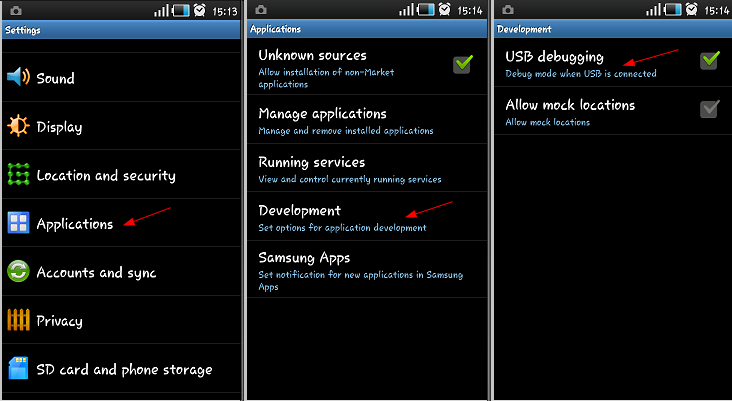
- Turn on the USB Debugging Mode on your device. Open phone Settings> Applications> Development> USB Debugging, then check the box. Do not forget to do this.
Steps to Root Galaxy Ace S5830i
- Copy the two files, namely “root.zip” and “ClockWorkRec5830i.zip” to the root directory of your SD Card by connecting your device to the PC via a USB Cable.
- Now you need to turn off your phone and boot it into Recovery Mode. To do this, simply press and hold the Volume Up+Home+Power buttons simultaneously. Keep these three keys pressed till you see the Start-up screen of your device blink two times followed by the Recovery Mode screen.
- Please note that the touch screen feature does not work in the Recovery Mode, so you will have to use the hard keys (Volume Up & Down and Home/Power keys to navigate and select options.
- In the recovery mode, you will see a list of options. Select “apply sdcard update.zip” and locate the “ClockWorkRec5830i.zip” package that you copied to the SD Card in Step 2 and confirm your choice by selecting “Yes”.
- This will initiate the installation process which will take a few minutes to finish and your Galaxy Ace S5830i has CWM recovery installed on it.
- The stock recovery has now been replaced with custom recovery.
- From the main menu in ClockworkMod Recovery, go to “install zip from sdcard>choose zip from sdcard“ and select the “Root.zip” file.
- Select “yes” when asked and wait till installation finishes.
- Finally, go back to the main menu and select “reboot system now”.
When your Galaxy Ace S5830i reboots, look for the SuperUser app in the list of installed apps. If it is present there, you have successfully rooted your device. If not, you must have made some mistake. Just repeat all steps again to root it.
Note:
I would like to inform you that the CWM recovery installed using this method remains temporarily and you need to install it every time you have to use it. Whenever you need it, boot the device into stock recovery and flash the “ClockWorkRec5830i.zip” file using “apply sdcard update.zip” option.
Important: Backup Your Phone’s EFS Data
IMPORTANT: Since now you have rooted your Galaxy Ace S5830i, you must do this precautionary step. Download a Root File Manager app from the Google Play Store. Open the root file explorer and look for a folder called “efs” and backup this folder to the External SD card of your phone. It will be even better if you back up this folder on your computer too. In fact, this folder contains your phone’s IMEI. In case you discover that your phones IMEI number has gone/lost, you can restore the “efs” folder back to its place and your problem will be fixed.
If this tutorial proved helpful to you, do not forget to share it with your friends. In case you face any problem in rooting your Galaxy Ace S5830i, just drop a comment. I will try to help yo our as soon as possible.
Sir how much tym vil it take in the last step while rebooting after installing jelly blast rom.
Your method with kernel and modulos worked for me!
Phone working perfectly now thanks!!!
help me immediately sir ive done all this step but still it does not work
sir i ve done this tricks but still it dostn work it always reboot several time
hi boss, i’m using galaxy ace s5830i.. i got into problem of bootloop..
wipe cache/factory reset doesnt work in my mobile…
when i tried to install single file installation, it shows fail…
sir in my galaxy ace s5830i i had installed jellyblast v3.0.3 with cwm. afterword i have install 2 zip
(kernel-201211201515-E3-boot.img.zip)
and
modulos201211201515-modules.zip)
file as it was shown in comments by @sayan.but still i have problem my imei number is not detecting as well as i wont be able to make calls and send sms.sir please help me asap.
Samsung Galaxy Ace S5830 Not open how to open tips plzzzzz
i have installed the CWM recovery already, but i cant get into the custom recovery, n the device always go to the stock recover. i try to install the CWM recovery every time i go into the recovery mode, but it still doesnt work. please help me to install the CWM. Thanks!
installed jellyblast and everything works fine but sim contacts are not showing, only in the set i installed jellyblast. In other devices sim is showing contacts. what to do. Please help me.
Thanks
wah..even im just rooting my samsung galaxy ace gt 5830i..i cant receive call and text messages..T_T..what wrong with me..im doing the right steps while installing root and CWM..and now im rooted..i cant receive call and text messages..even my internet is gone..
what is problem i cant enter the cwm recovery mode althought i already install it..
Try again
same as the just result … i download the ROM manager and it just say unsupported my device
Okay, download this file and install via stock recovery: http://d-h.st/mkv
Using apply update from sdcard option.
just install like tutorial above?
Yes.
Doesn’t work for me 🙁 It keep go to Android system recovery utility instead of CWM recovery …
it just keep get back to the stock recovery can’t enter to the custom recovery….
It works brilliantly, many thanks
Or just factory data reset will do?? Please suggest..
I have a rooted gt s5830i and have convertedd some system app to user apps via link2sd and moved them to sd card. Now if I unroot my device will I get those apps back like thy were before?? I will then root again with your procedure..
Well, I have never tried that personally but I am afraid it will not work. If you have rooted it, there is no reason to unroot the device.
I have already rooted my ace s5830i. Do i still need to install CWM recovery on my phone???
Yes, if you want to install a custom ROM like these: http://droidviews.com/2012/best-custom-roms-for-samsung-galaxy-ace-s5830i-2/
headphone is not working how i fix it plz tell me
i have updated my phn.. everythng is working fine but my imei has gone n m unable to make or receive calls… plz help me..
Have you flashed a custom ROM?
Flash back the original ROM.
i cant see the any links can u post some
Sorry, the links are already there. I have made them bold.
i try to root my phone and install new rom.but mistakly wipe all data,now i cant root my phone and try to root off phone then on showing samsung galaxy ace gts 5830 i wellcome not only,diid not on and work my phone,wat can i do
Do not worry. Try the method 1 given here
http://droidviews.com/2012/how-to-recover-when-your-android-device-is-caught-in-bootloop/
If it does not help you, install a new firmware. This tutorial might help you fix your device:
http://droidviews.com/2013/how-to-downgrade-firmware-on-samsung-galaxy-devices/
Good luck!
Hi, I’ve transferred all required files to root directory of my sd card. But when I switch my handset to boot recovery and select apply update from sd card, then it gives an error like ‘Can’t mount sd card’. What should I do?
Make sure you have turned USB Debugging mode on.
Hi. Does this apply also to the Samsung Ace 5839i? From what i have read it would appear that the 5830i and 5839i are the same?
Yea both are the variants of the same device and I think it should work for you too.
Hi. I’ve done everything you said installing the JellyBlast rom. It worked but I’m not able to access the play store and whatever is related to the google account (synchronization, gmail..). When I add the google account it gives an error and automatically is forced to be closed. When I try to enter the play store it opens the page but never loads saying “server error”. Username and password of the account are correct and I’ve installed everything you said (including Gapps-jb-20121011-signed.zip), so I don’t know why it’s not working. I’ve also observed a problem with the home button that is not working. My phone is a Galaxy Ace s5830i. Any suggestion or idea? Thank you very much.
Reflash the ROM. There is only one bug in it: headset not working. Everything else should be fine.
Try this Gapps package: